
Getting started
Design-ready color systems from one brand color.
Spectro is a Figma plugin for generating balanced neutral palettes, semantic status colors, Figma variables, and visual palette guides for modern product interfaces.
Generate a neutral palette
Start with a brand HEX, tune the curve and stops, then export a balanced neutral scale as Figma variables.
Create status colors
Build Primary, Positive, Negative, Warning, and Info scales for light or dark UI surfaces.
Send colors to Figma
Export variables, update an existing collection, or insert a visual guide into the canvas.
Install Spectro
Install the plugin from Figma Community, then run it from Figma's plugins menu. No Spectro account is required for the current plugin workflow.
 Open in Figma
First Palette
Pick a mode, enter a HEX color, review the generated swatches, then export variables or insert a guide into your file.
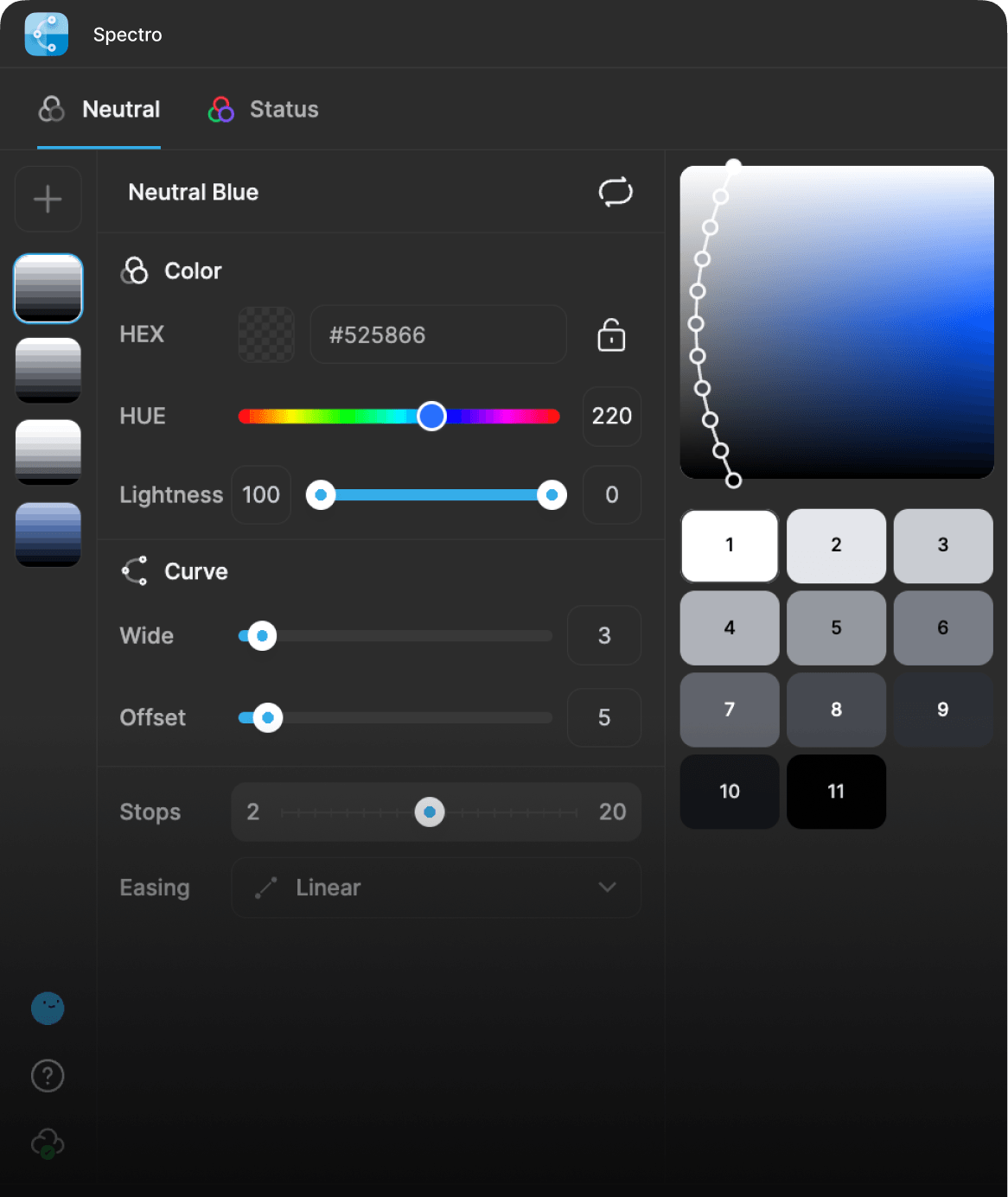
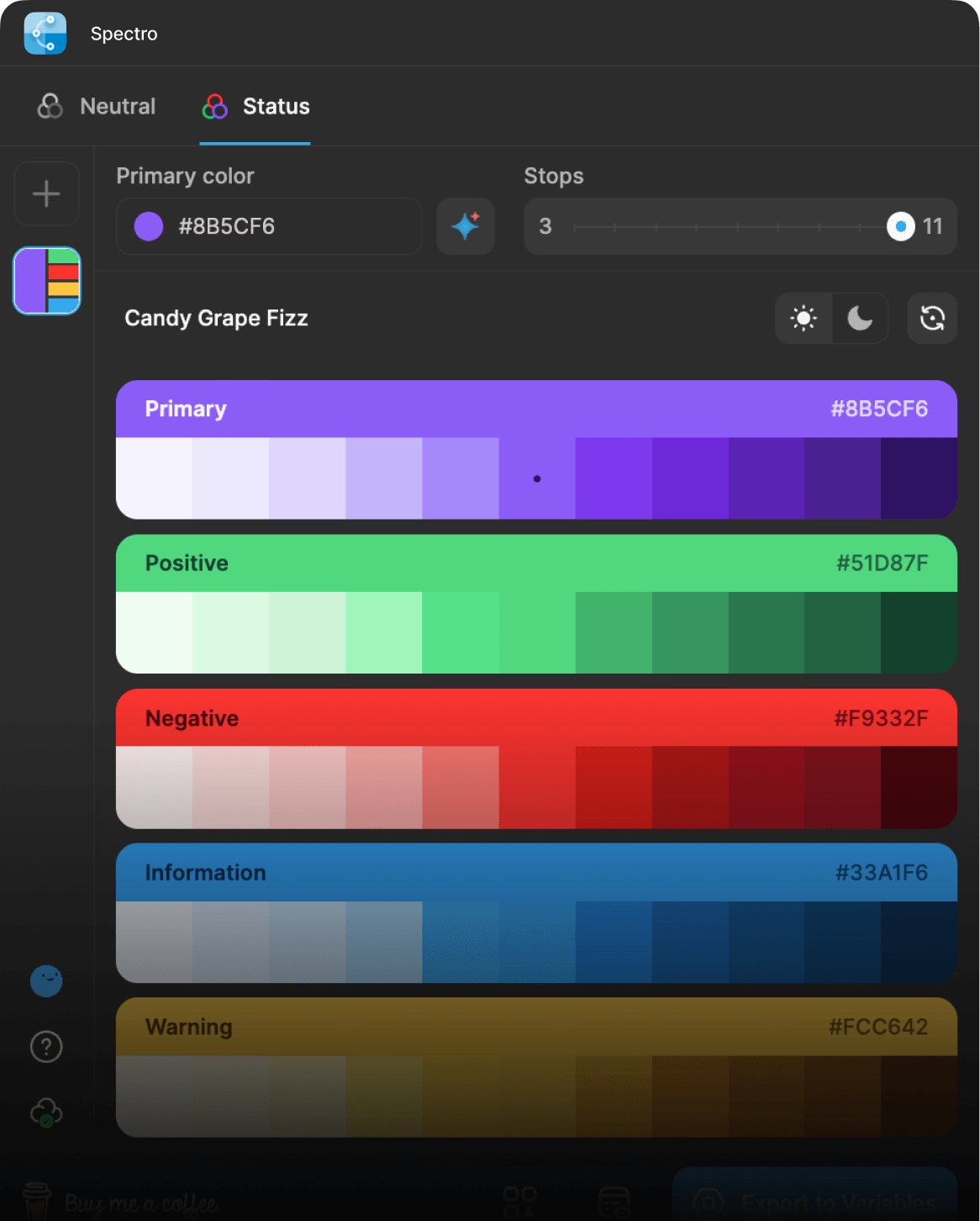
Interface Overview
Mode tabs
Switch between Neutral and Status workflows.
Color controls
Enter HEX, pick from canvas, randomize, lock, or adjust colors.
Scale preview
Review generated swatches and curve behavior before export.
Footer actions
Export variables, update existing variables, insert guides, or open support.
Palette Modes
Neutral Palettes
Neutral mode creates grayscale or near-neutral ramps for surfaces, borders, text, icons, and UI states. It is the best starting point for product interface foundations.
- 1Enter or pick a HEX color.
- 2Adjust hue and lightness until the anchor feels right.
- 3Shape the curve to control how quickly the scale moves from light to dark.
- 4Choose the number of stops and density.
- 5Export the final scale as Figma variables or insert a guide.
Status Palettes
Status mode generates semantic role scales for Primary, Positive, Negative, Warning, and Info. Use it when you need color tokens for alerts, badges, progress, validation, notifications, and product states.
- 1Open Status mode.
- 2Choose a brand Primary color or generate a safe random one.
- 3Switch between light and dark friendly output.
- 4Regenerate all status colors or lock individual role groups.
- 5Preview the palette in realistic UI before exporting.
Light and Dark Modes
Spectro can generate status palettes tuned for light or dark UI. If a selected color may feel unstable in dark mode, the plugin offers an adjustment so the final palette stays usable.
Working With Colors
HEX Input
Paste a HEX color to use it as the source for the active palette mode.
Figma Color Picking
Pick a fill or stroke color from the current canvas selection when you want Spectro to match existing design work.
Safe Random Colors
Generate a fresh primary color that avoids repeated hue families and stays usable for status palettes.
Lock Matching
Lock the source color when exact brand matching matters, or unlock it when Spectro should optimize the ramp.
Exporting to Figma
Export Variables
Create a Figma variable collection from the current palette.
Update Variables
Replace values in an existing Spectro variable collection while keeping the collection structure.
Insert Guides
Add a visual palette guide or UI preview frame to the canvas for review and handoff.
Export JSON
Copy palette data for implementation, documentation, or downstream tooling.
Saved Palettes
Spectro stores saved palettes locally in the plugin, so you can switch between recent palettes, rename them, and reuse them in later sessions without setting up an account.
Troubleshooting
Export button does nothing
Generate a palette first, then retry. Spectro only exports when a valid current scale exists.
Variables already exist
Use Update existing variables when you want to preserve the same collection and replace values.
A color feels off in dark mode
Use the dark mode friendly status option and accept Spectro's compatibility adjustment when it appears.
Cloud generation failed
Retry the sync action. If the issue persists, keep working with the current local palette and contact support.
Privacy and Data
The current Spectro plugin does not require a login. Saved palettes and onboarding state are stored through Figma client storage. Palette generation may call Spectro Cloud APIs, and lightweight analytics/performance events help diagnose reliability.
Support
Use the plugin's support menu to report issues, request features, or support Spectro. Include your palette mode, source HEX, and what you expected to happen.